From 3D Model Generation to Cinematic Scenes in Blender: How to Use VARCO 3D

As AI-powered creation tools continue to evolve, the way creators work is changing as well.
What used to be a series of separate steps—creating a 3D model from text or an image, editing it, adding motion, and bringing it into a final scene—can now be connected into a single workflow.
3D creator Philipp of PixelArtistry put the full VARCO 3D workflow to the test, from 3D generation and editing to remeshing, rigging, and animation.
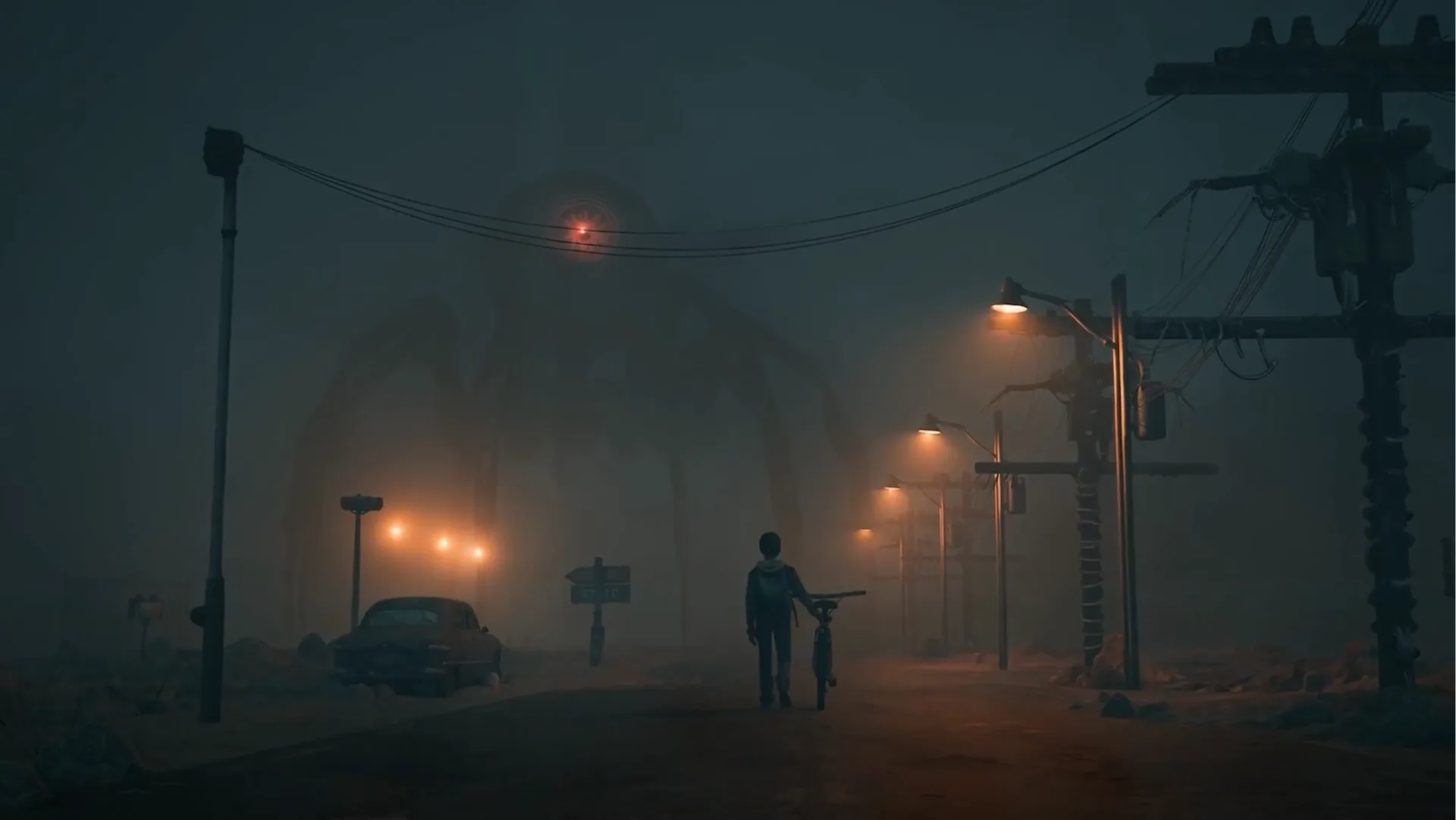
He then brought the props and characters created in VARCO 3D into Blender to complete a cinematic scene featuring a monster standing in a foggy street.
In this article, we follow Philipp’s process and explore how VARCO 3D can be used throughout a 3D production workflow.
We’ll also look at how he reduced the time spent preparing 3D assets and used that extra time to focus on cinematic details such as lighting and atmosphere.
An End-to-End AI 3D Workflow in One Place
Creating a 3D asset for a game or video involves much more than modeling alone. The mesh needs to be refined, polygon counts adjusted, and textures applied.
For characters, rigging and animation are also required to bring them to life. Traditionally, creators often have to move between different tools for each step.
Philipp handled the entire process in VARCO 3D—from generating the initial model and remeshing it to editing textures, generating PBR textures, rigging, and animation.
One of the key advantages of this workflow was being able to move directly from one step to the next without exporting the model to another tool.
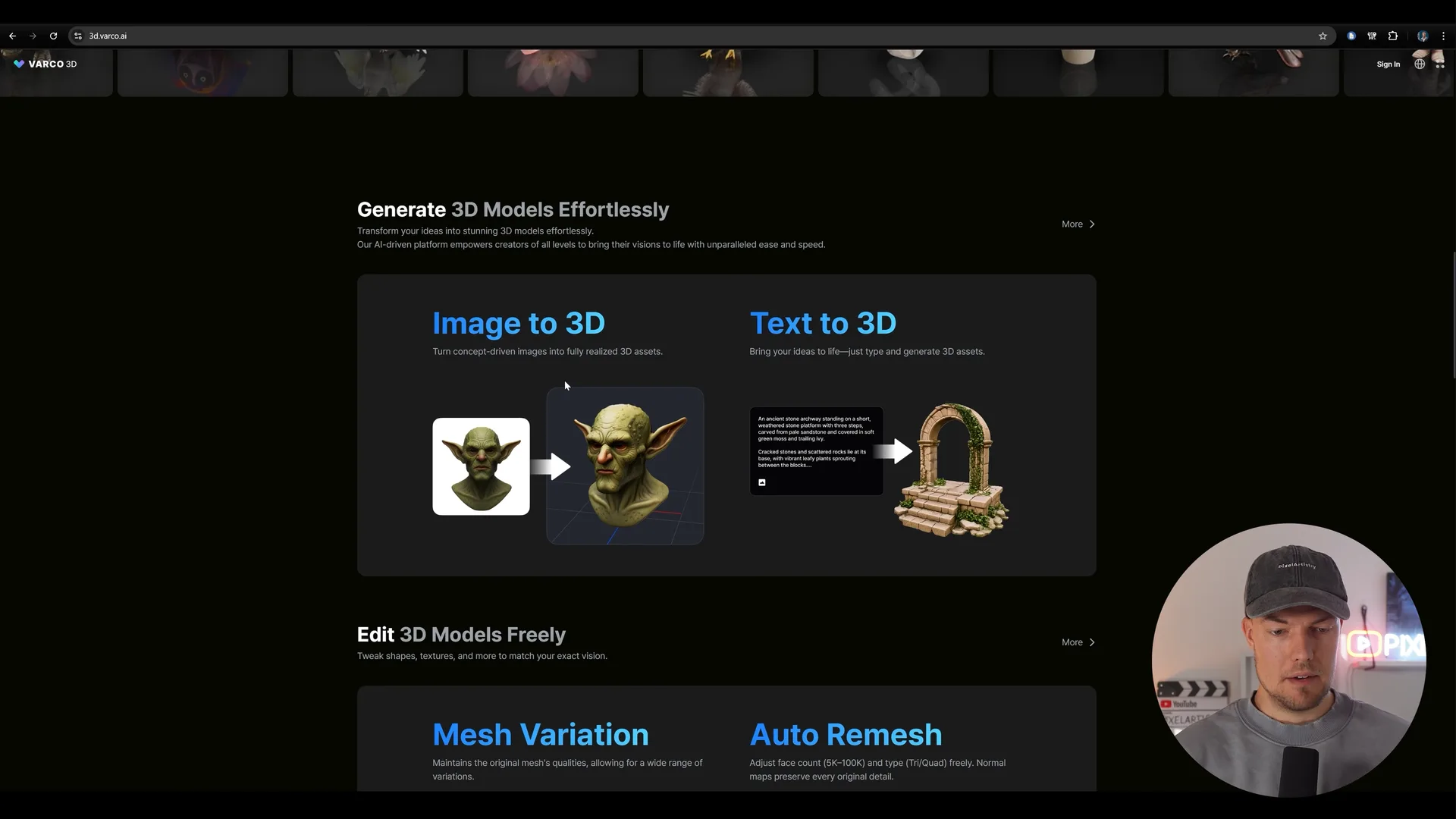
Text to 3D: Creating a 3D Model from Text
Philipp started by creating a sci-fi pilot character using Text to 3D.
In the prompt, he specified a front-facing view and a T-pose, making the character easier to prepare for AI-assisted rigging later in the workflow.
Once the prompt is entered, VARCO 3D first generates four 2D concept sketches before creating the 3D model.
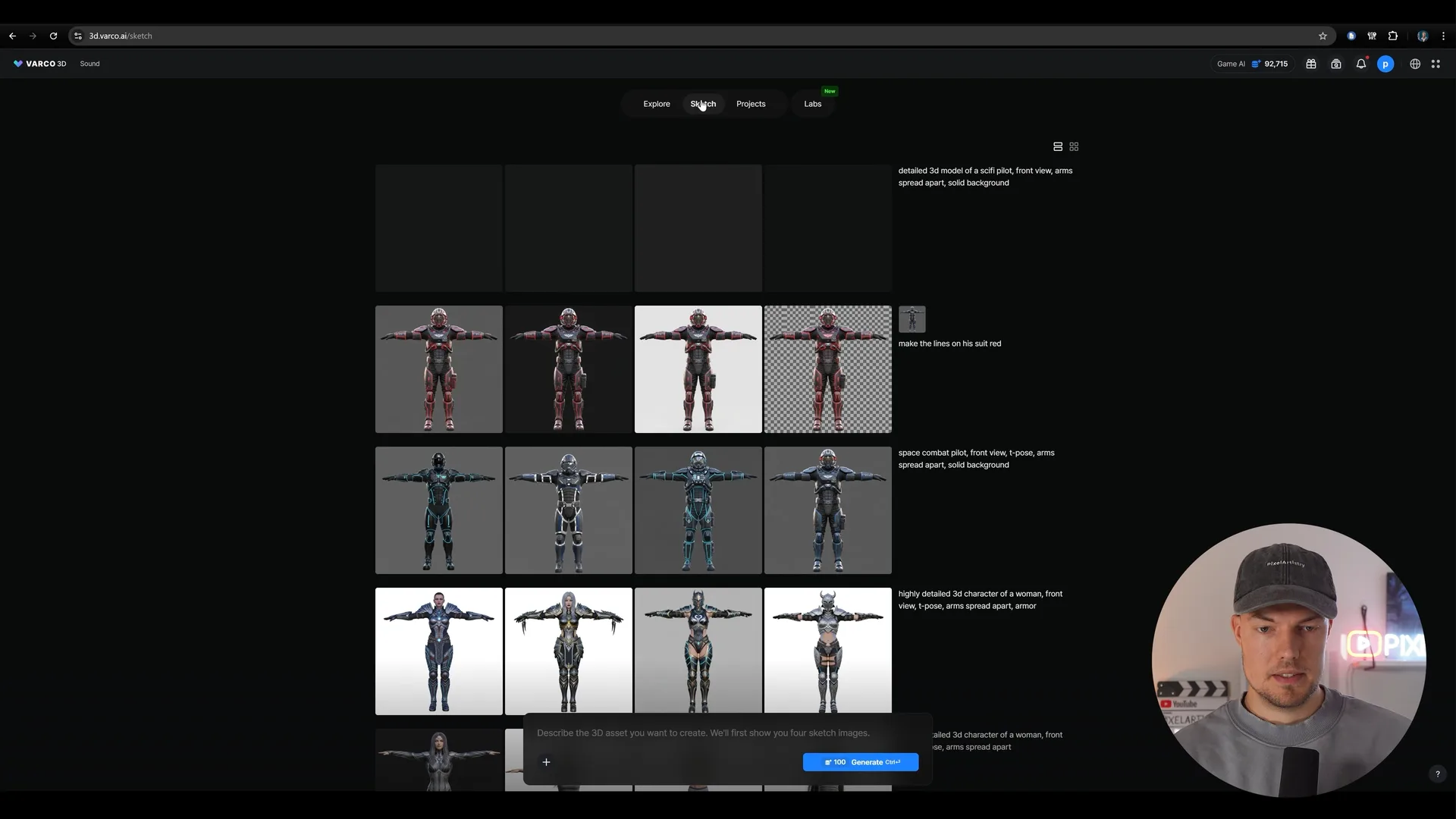
Philipp selected one of the concepts and entered the instruction, “Change the blue lines on the suit to red.” After refining the sketch, he generated the final 3D model.
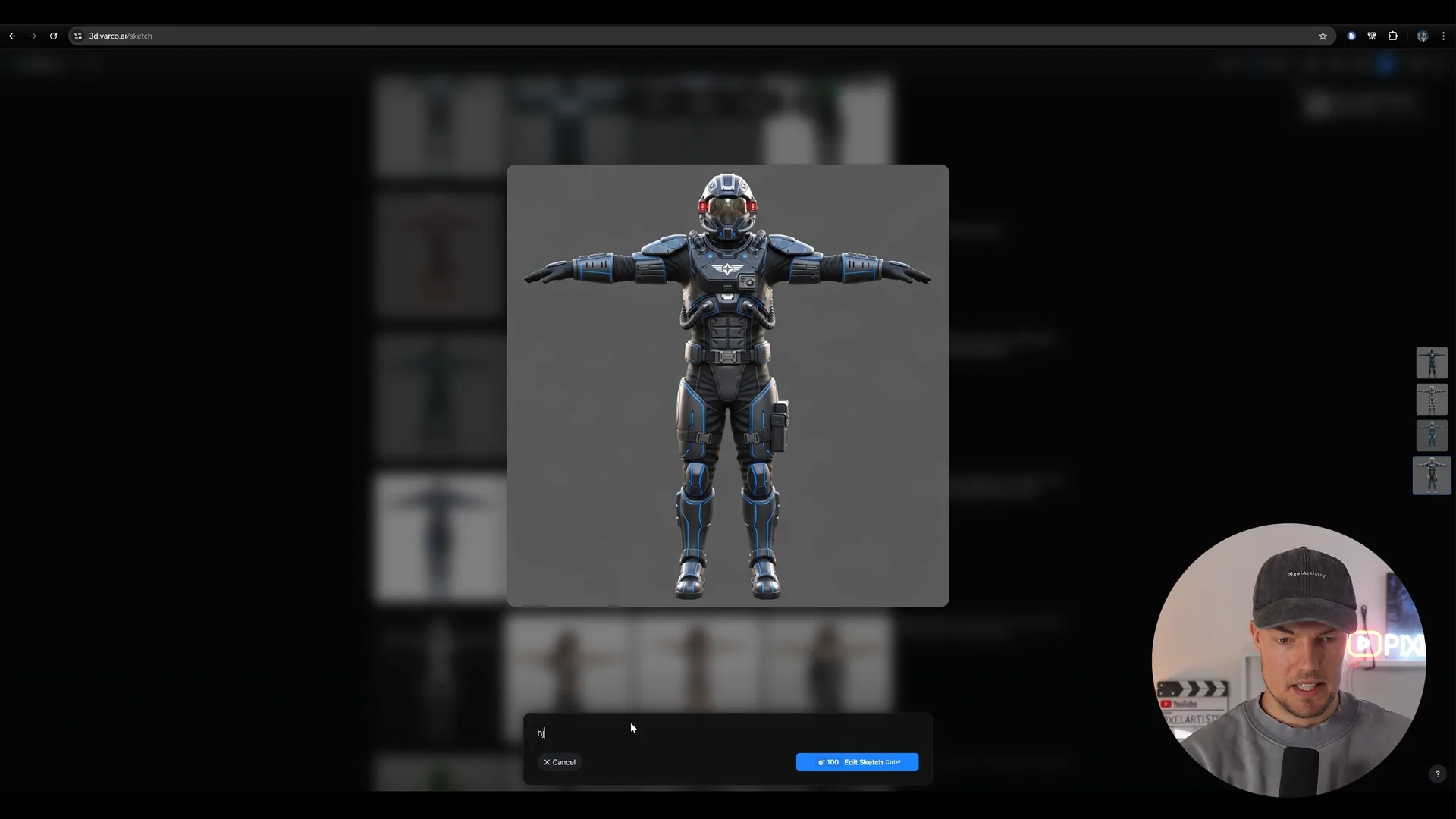
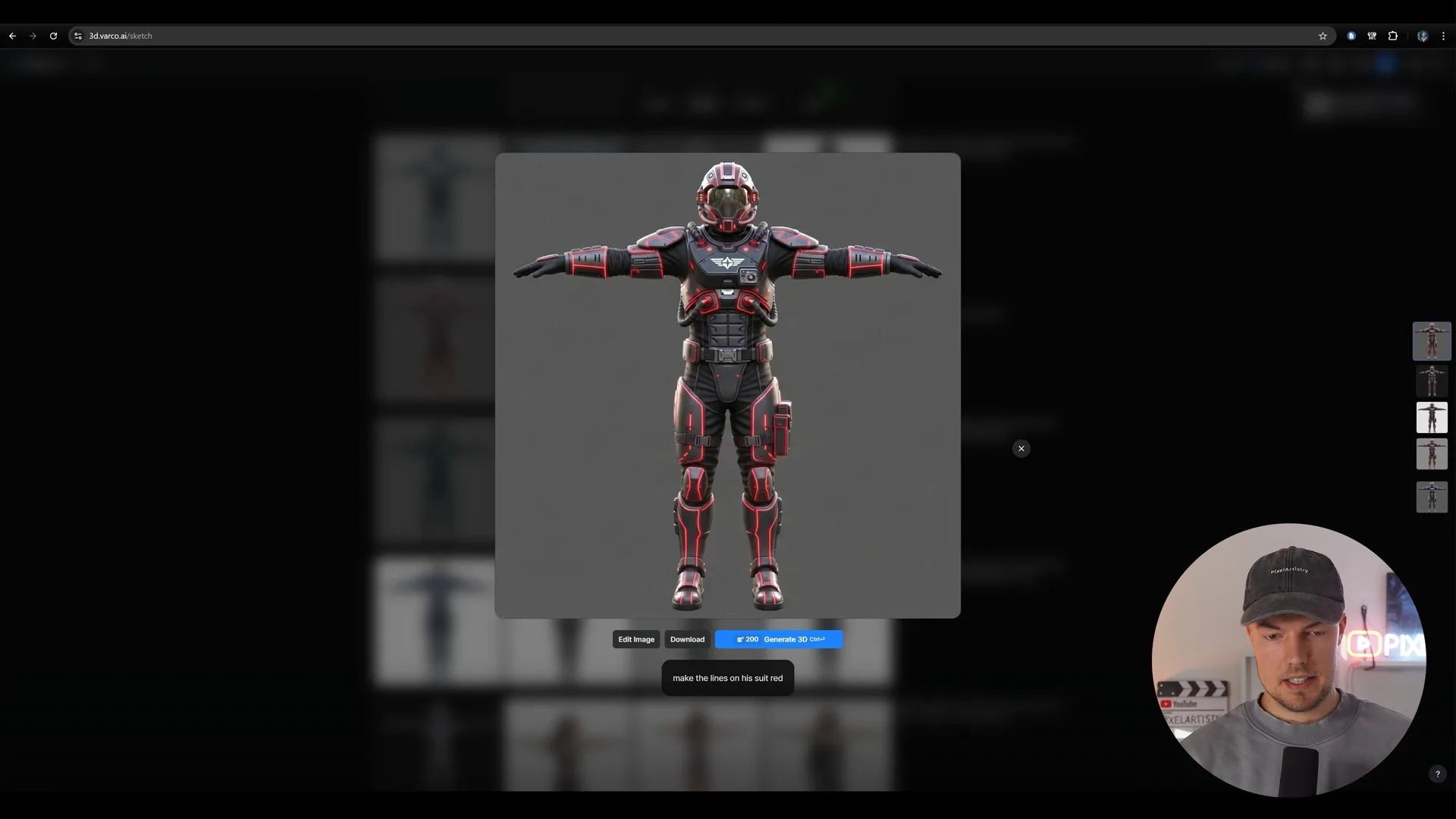
By reviewing and editing the 2D concept first, creators can refine the direction of the asset before converting it into 3D.
Image to 3D: Creating a 3D Model from an Image
If you already have a concept image, you can start directly with Image to 3D.
Philipp converted one of his own 2D concept illustrations into a 3D model and was particularly impressed by how well the facial textures and overall structure were preserved.
If you only have an idea, you can begin by generating an image from text. If you already have a reference image, you can turn it directly into a 3D model.
This makes it easy to choose the workflow that best fits the materials you already have and the goal of your project.
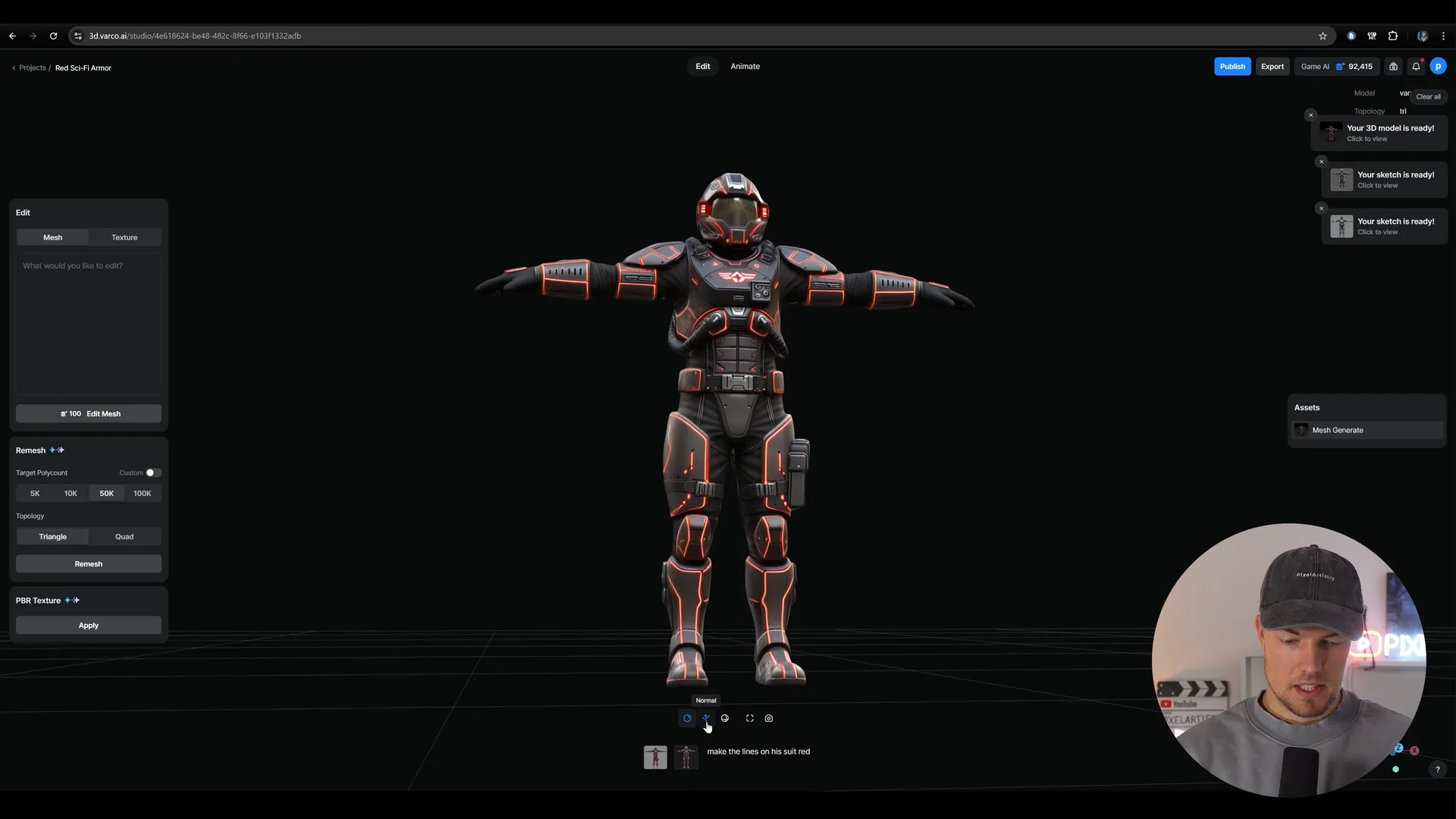
Mesh Variation / Texture Variation: Editing Meshes and Textures
If a generated model is not exactly what you want, there is no need to start over from scratch.
Using Edit Mesh, Philipp entered the instruction, “Add a sci-fi helmet,” adding a helmet while keeping the rest of the character intact.
With Mesh Variation, specific parts of a mesh can be edited without changing the entire model, allowing creators to refine only the elements they need.
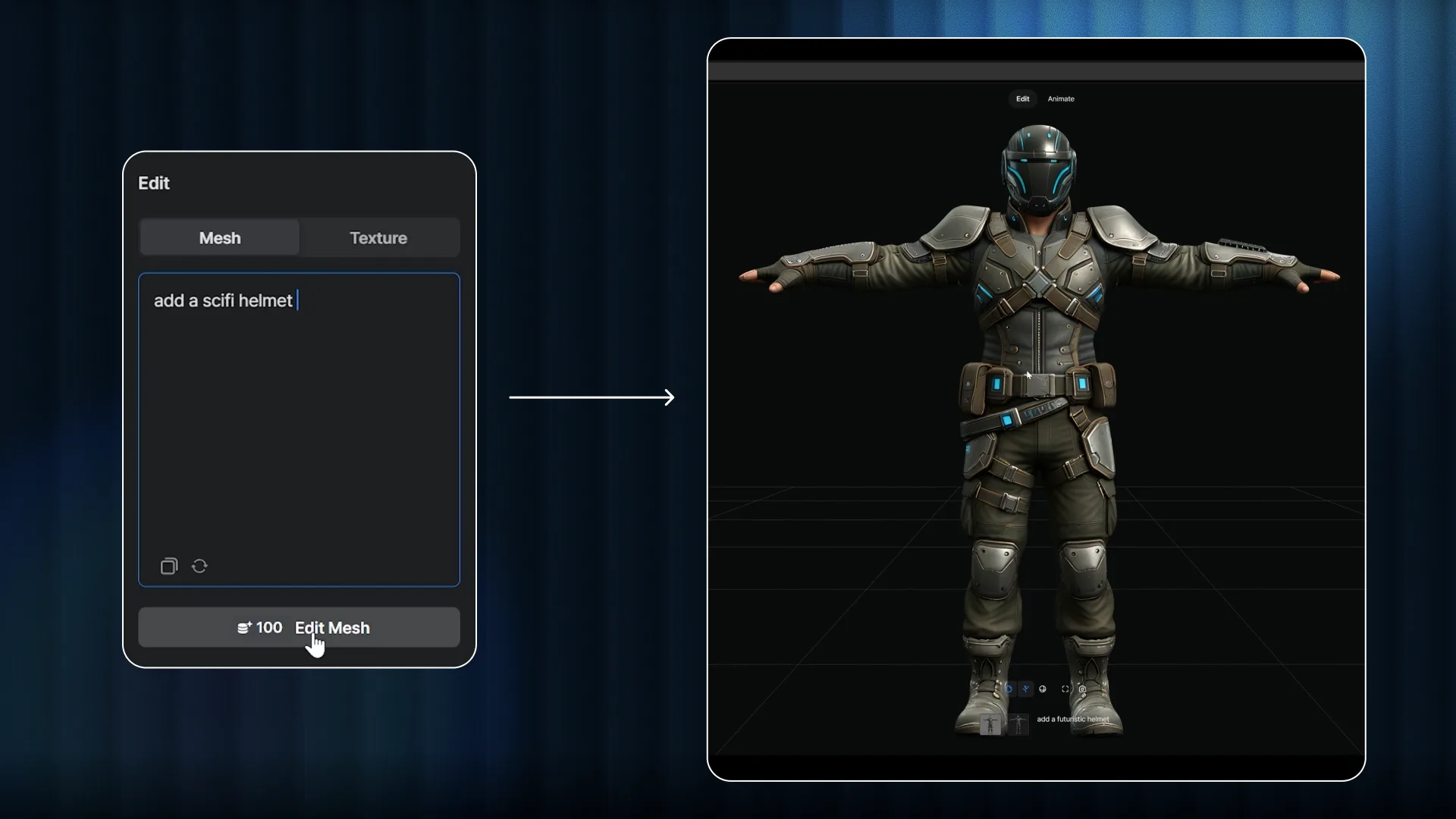
He edited the texture in the same way.
After entering “Add dust to the suit,” the shape of the model remained unchanged while worn, dusty surface details were added, giving the character a more natural and realistic appearance.
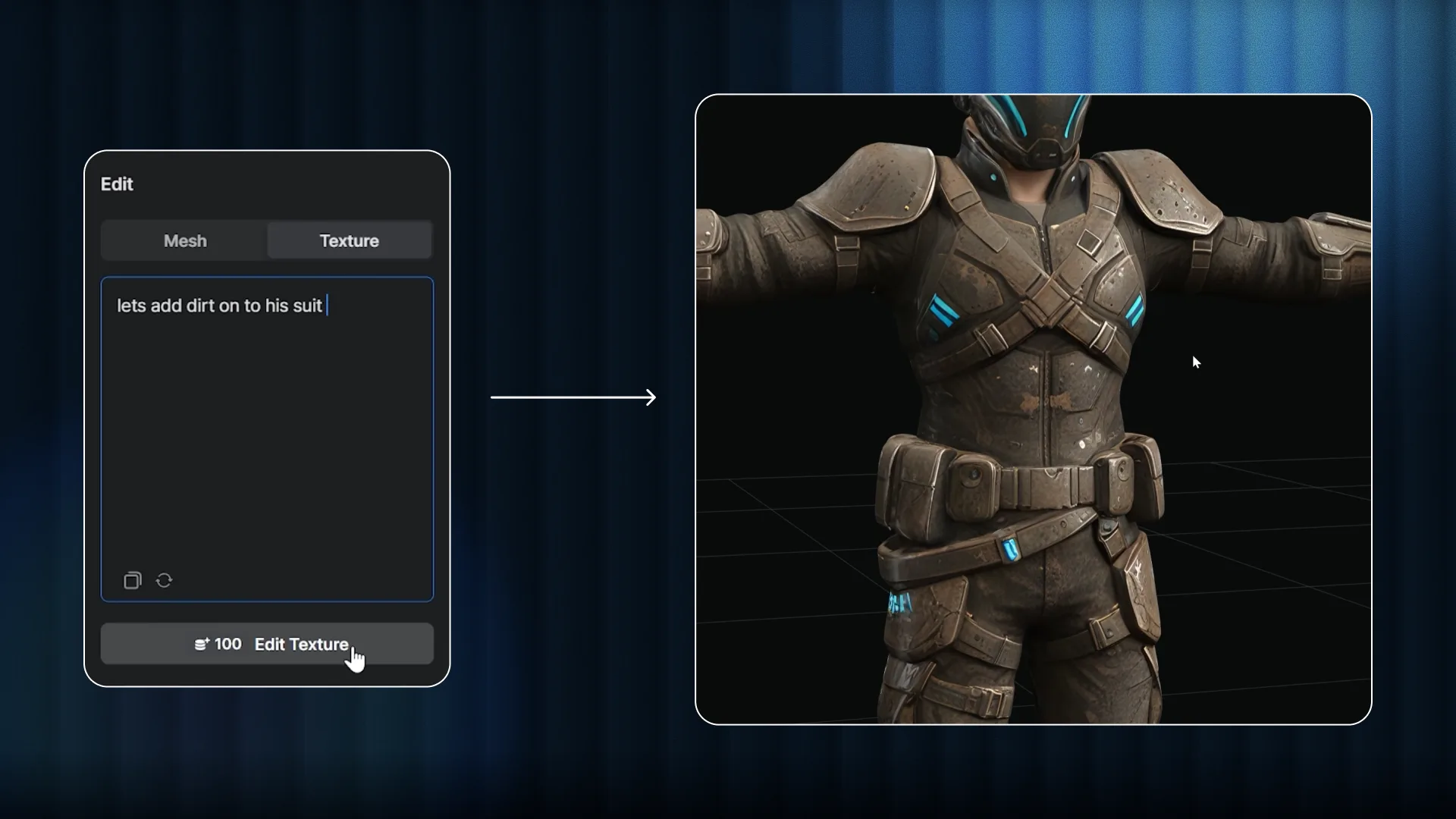
Every editing step is saved in the history, so you can return to the original version at any time.
With Texture Variation, you can create multiple texture versions of the same model and compare different looks.
In VARCO 3D, both meshes and textures can continue to be edited even after the initial model has been generated, allowing a single asset to evolve in multiple directions.
Auto Remesh: Polygon Optimization and Generating PBR Textures
To use a generated model in a real project, its polygon count and topology need to be optimized for the intended use.
Philipp remeshed the same character using two different settings at the same time: 5K triangles (Tri) and 50K quads (Quad).
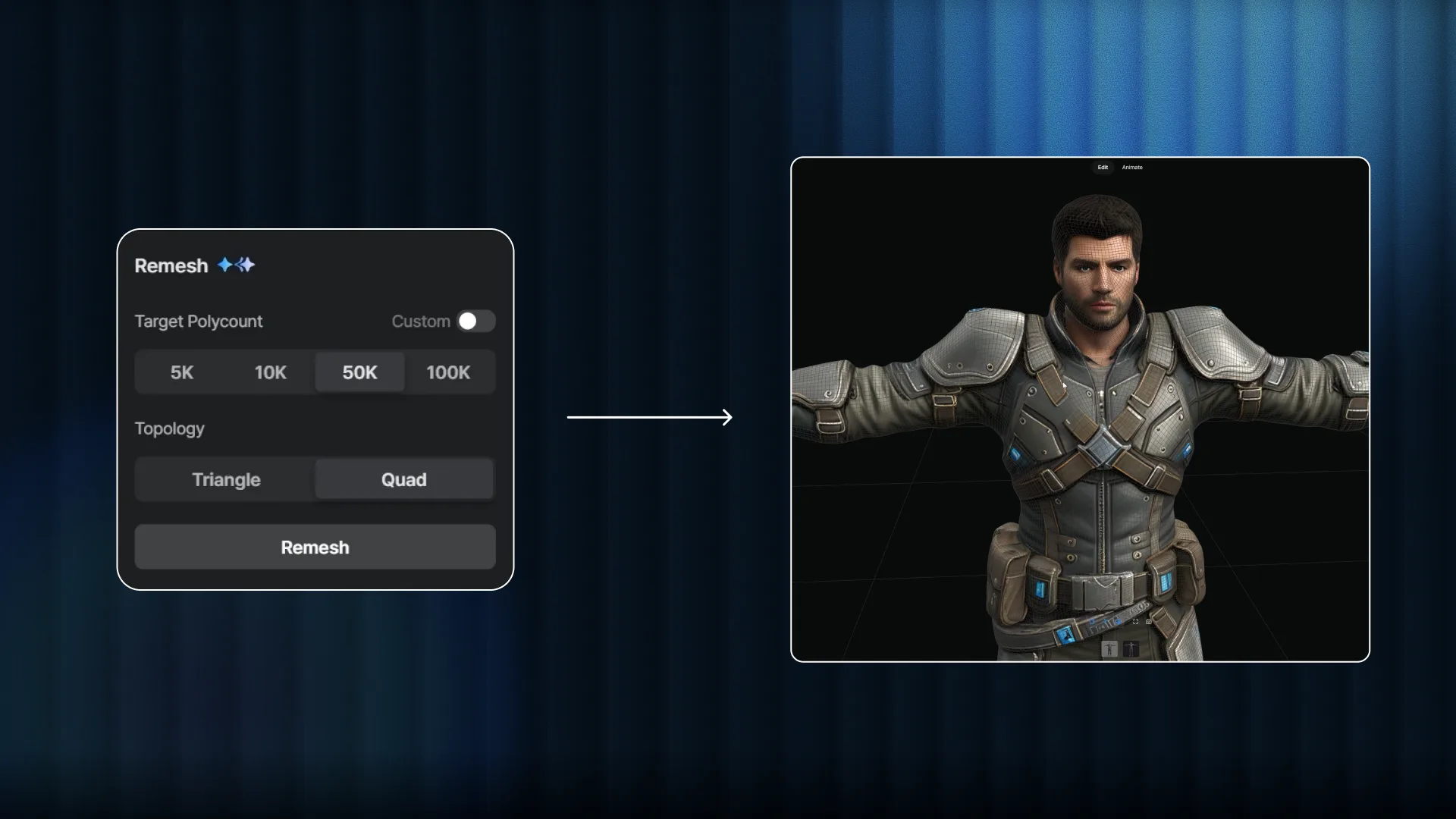
Auto Remesh is a feature that rebuilds the mesh based on your selected polygon count and Tri or Quad topology.
It is particularly useful for creating game assets that require polygon optimization.
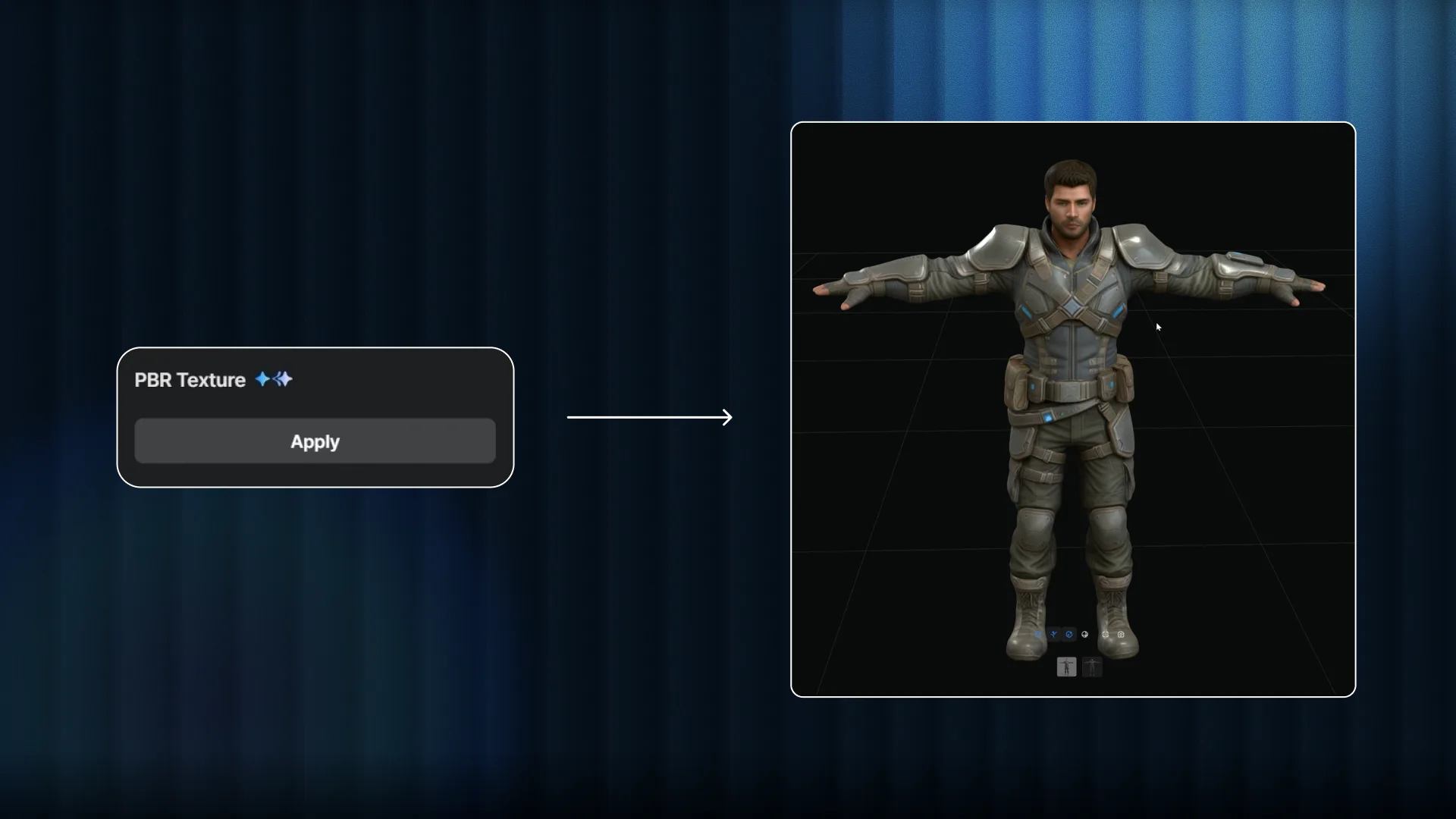
He then generated PBR textures, including physically based material information such as roughness and metallic values.
Handling both remeshing and PBR texture generation within the same platform makes it much easier to prepare assets before bringing them into Blender or a game engine.
Rigging and Animation: From Marker Placement to AI Auto-Rigging
Philipp rigged the character by selecting Rig with Markers from the Animate menu.
The process is similar to Mixamo, with markers placed at key joint positions, but VARCO 3D also allows for more detailed placement around areas such as the hands.
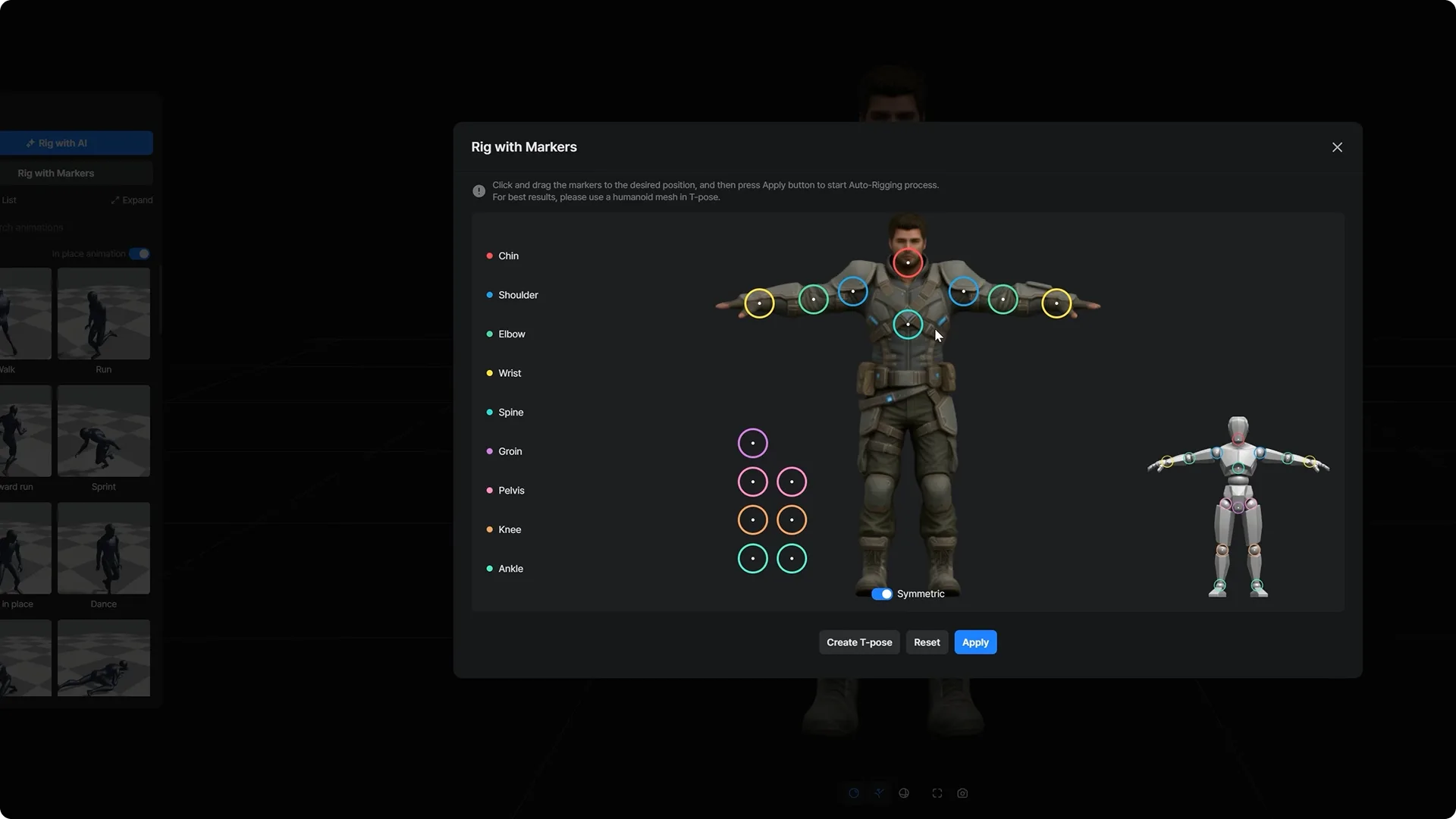
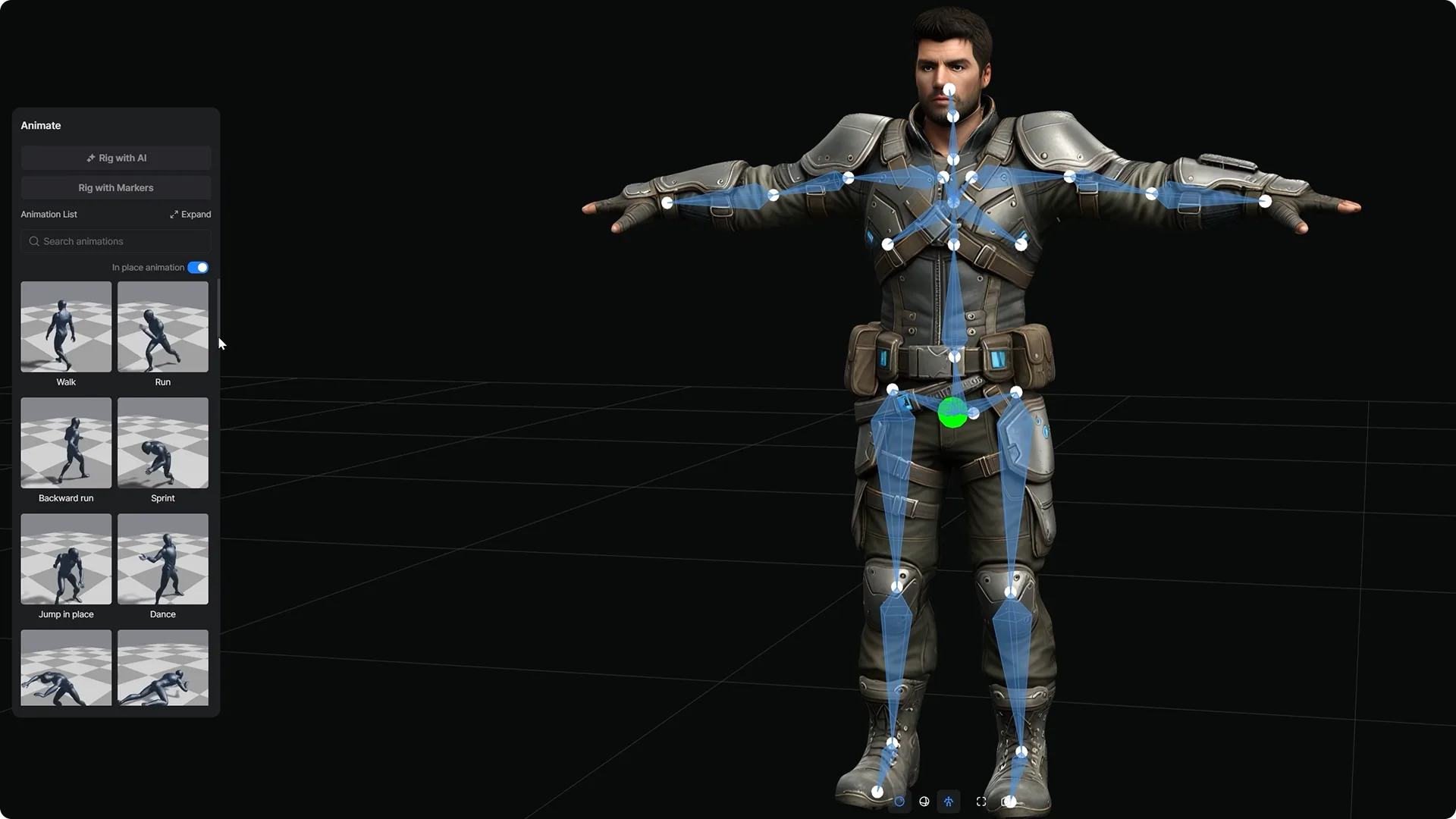
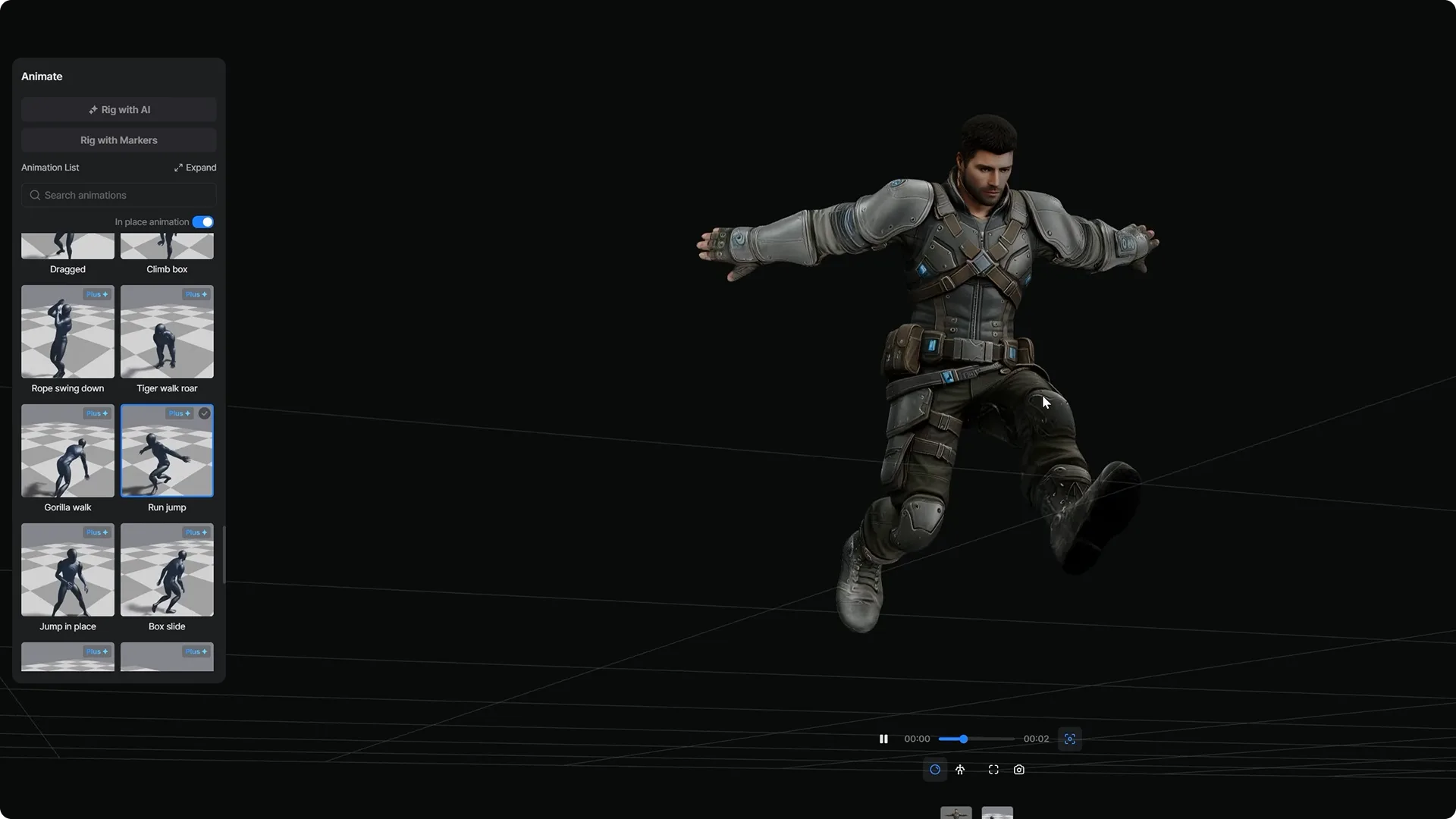
After placing the markers and setting the character in a T-pose, he clicked Apply and the rig was generated immediately. He could then choose from the available animations and apply them directly to the character.
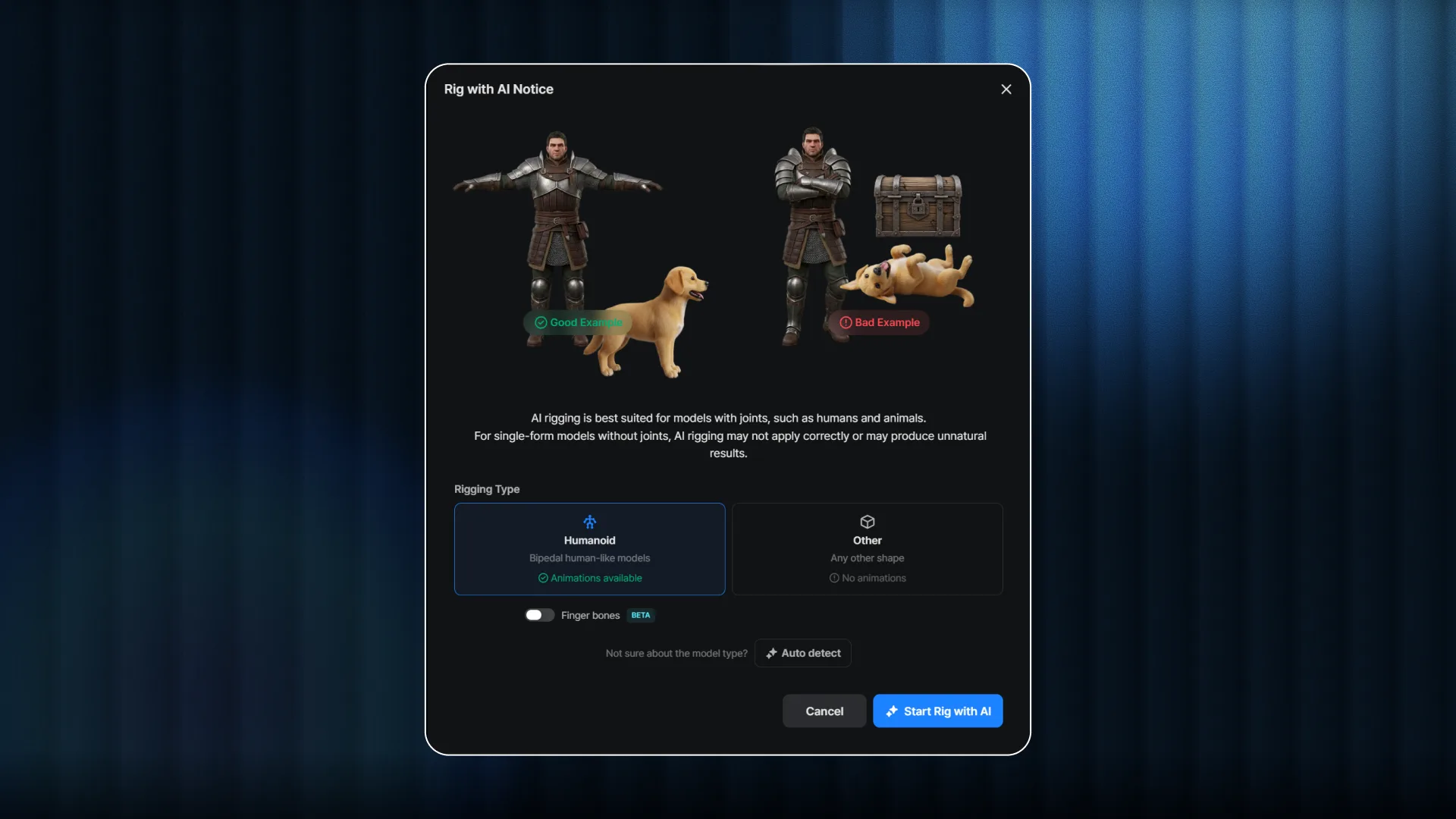
VARCO 3D also offers Rig with AI, which does not require manual joint placement.
The AI automatically sets up the skeleton, reducing the amount of preparation required before applying motion.
Creating Hard-Surface Assets and Building Your Own Custom Workflow
In addition to characters, Philipp also created hard-surface assets such as cars and sci-fi aircraft.
He highlighted small surface details—including rust and scratches—as one of VARCO 3D’s strengths. The car he generated was later used directly in the final cinematic scene.
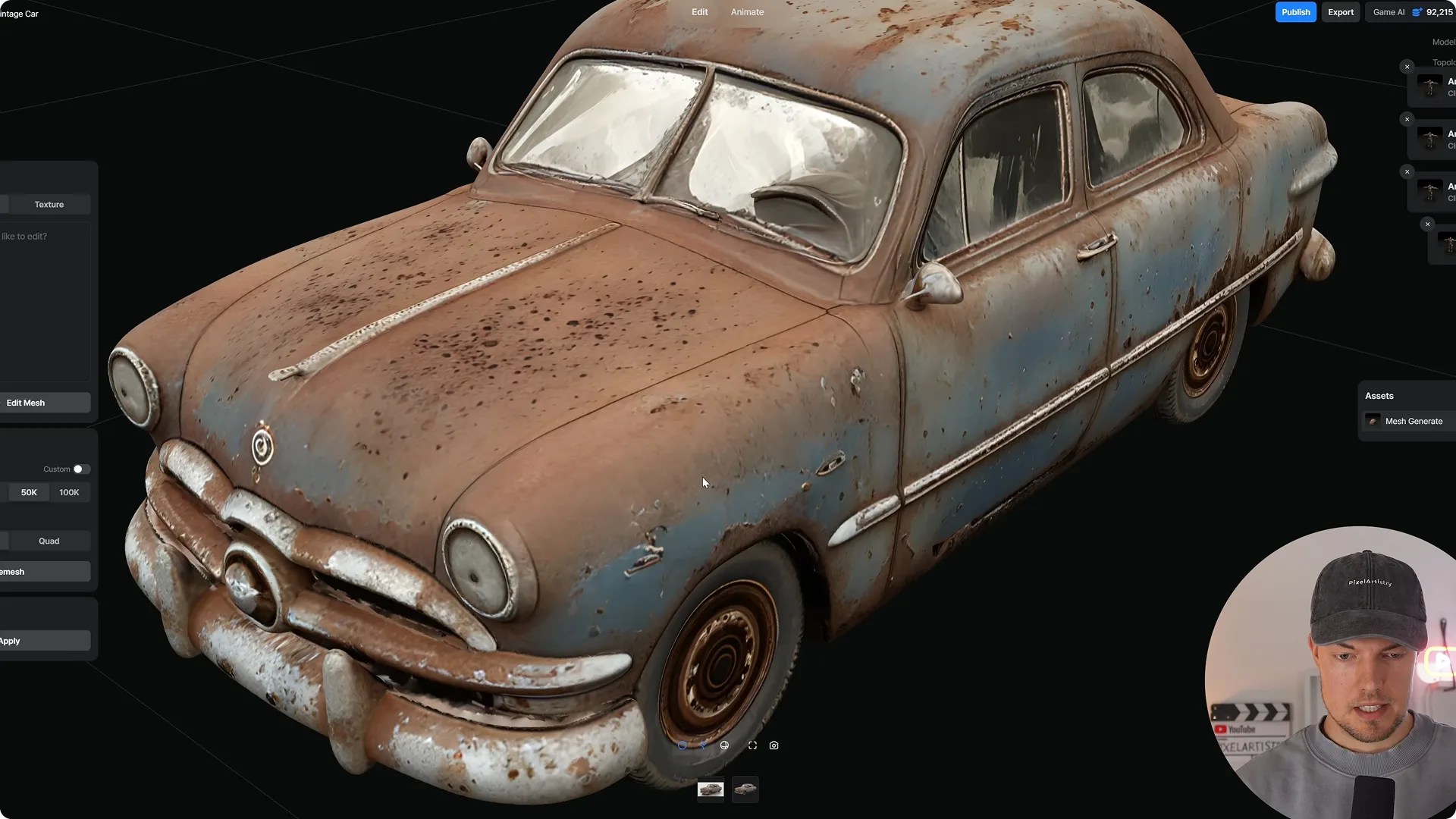
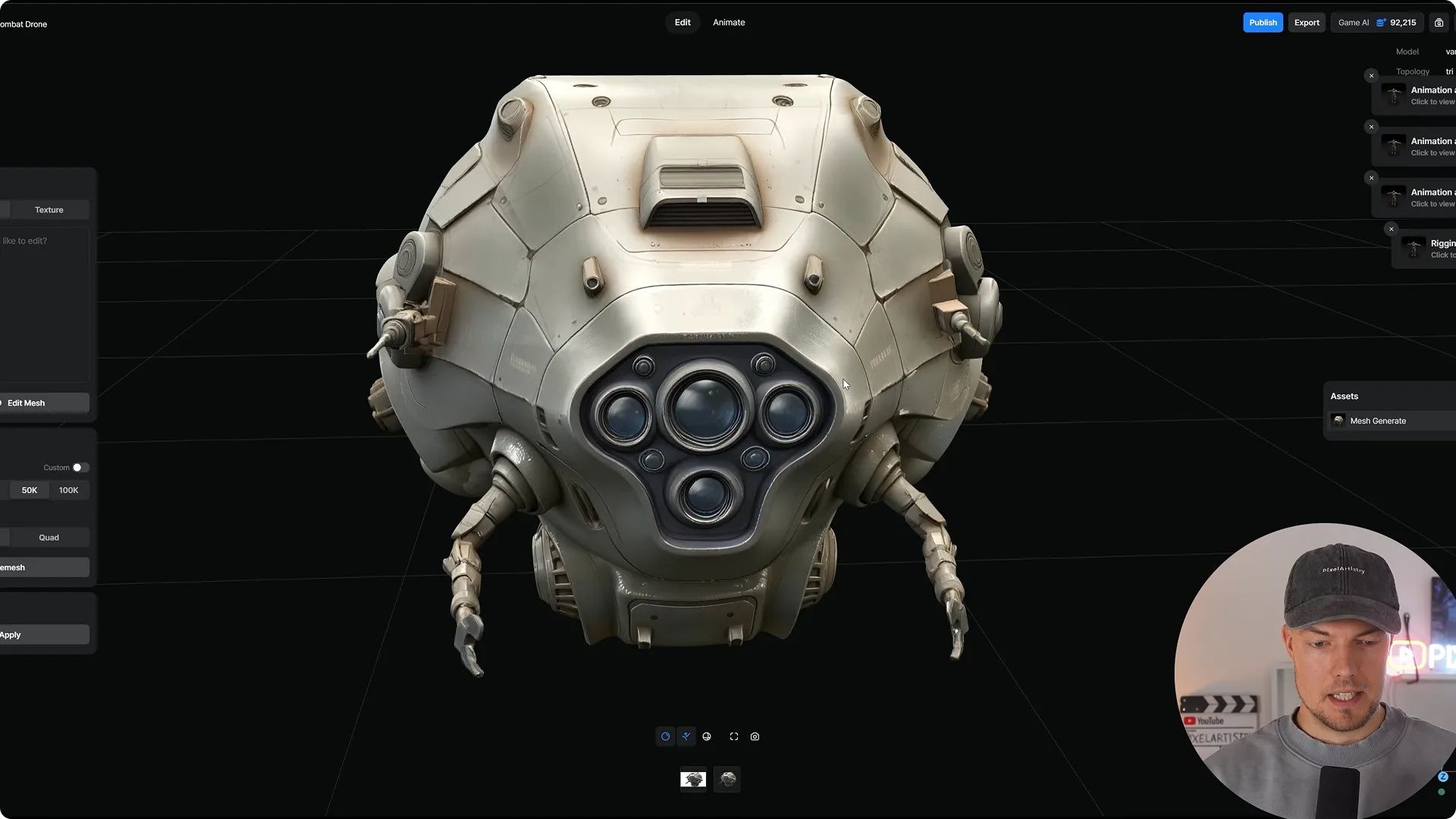
This demonstrates how AI can be used to create not only characters, but also a wide range of objects such as vehicles and aircraft.
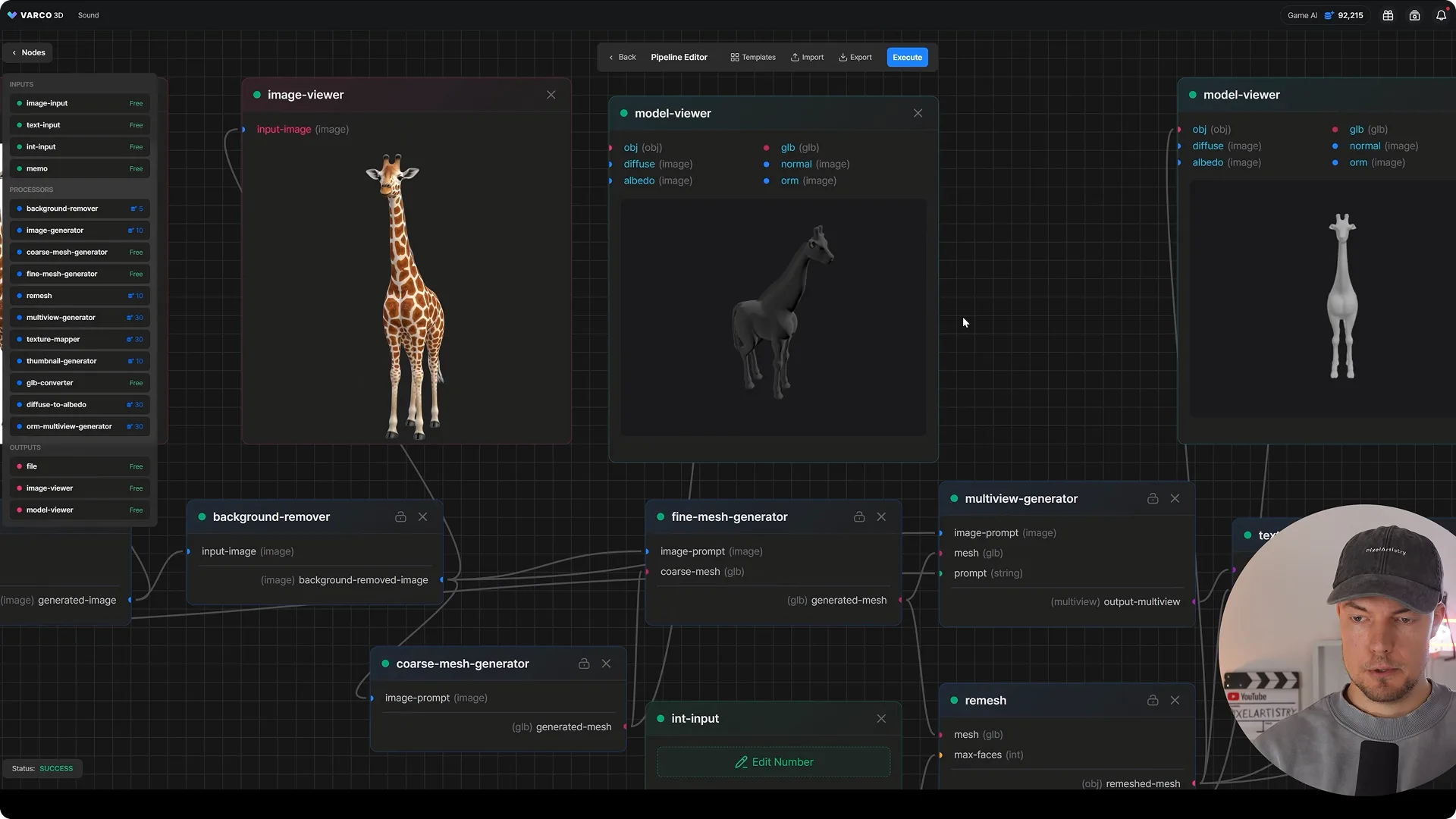
In the Lab menu, Custom Workflow lets you connect features such as image generation, 3D generation, remeshing, and texture conversion as nodes to build your own production pipeline.
Once created, a workflow can be saved, reused, or shared with team members, making it especially useful when producing multiple assets with the same settings or process.
Completing a Cinematic Scene with VARCO 3D and Blender
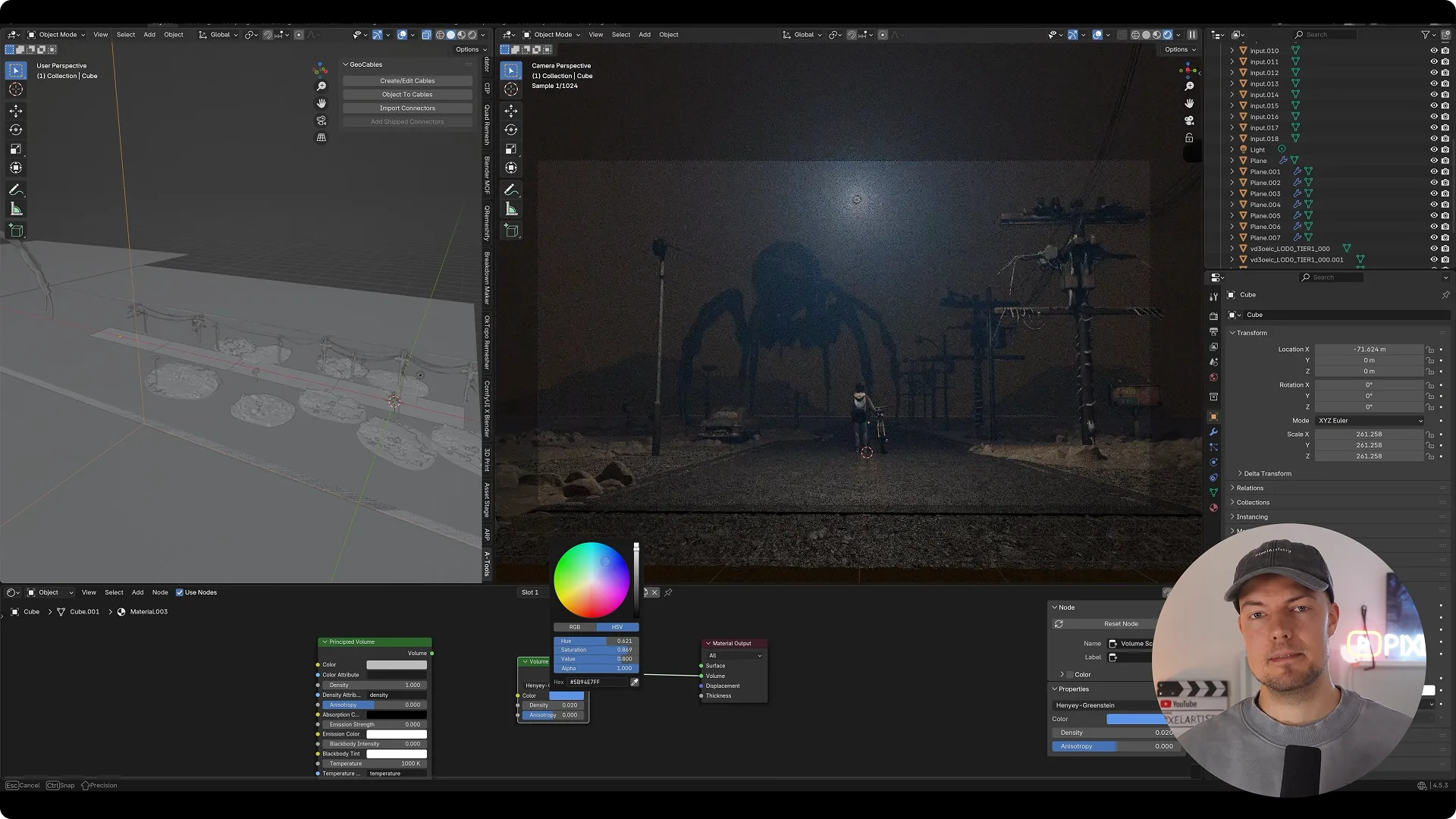
Philipp quickly generated the models needed for the scene in VARCO 3D, then continued with mesh editing, remeshing, and rigging within the same workflow.
By spending less time modeling individual props from scratch, he was able to focus more on the details that made the scene feel cinematic—from the density of the fog and the color of the streetlights to the direction of the monster’s gaze.
To see how the final scene—featuring a monster standing at the end of a foggy street and a boy looking toward it—came together, check out Philipp’s full video on YouTube.
Spend Less Time Preparing Assets, and More Time Directing the Scene
If you have a scene you want to create, start with your first 3D model using just a text prompt or a single image.
All of the features used by Philipp in this project are available to try directly in VARCO 3D.
This article was created based on PixelArtistry’s video featuring VARCO 3D.


