Building a Monster Village with AI 3D Modeling: A Guide to VARCO 3D and Blender

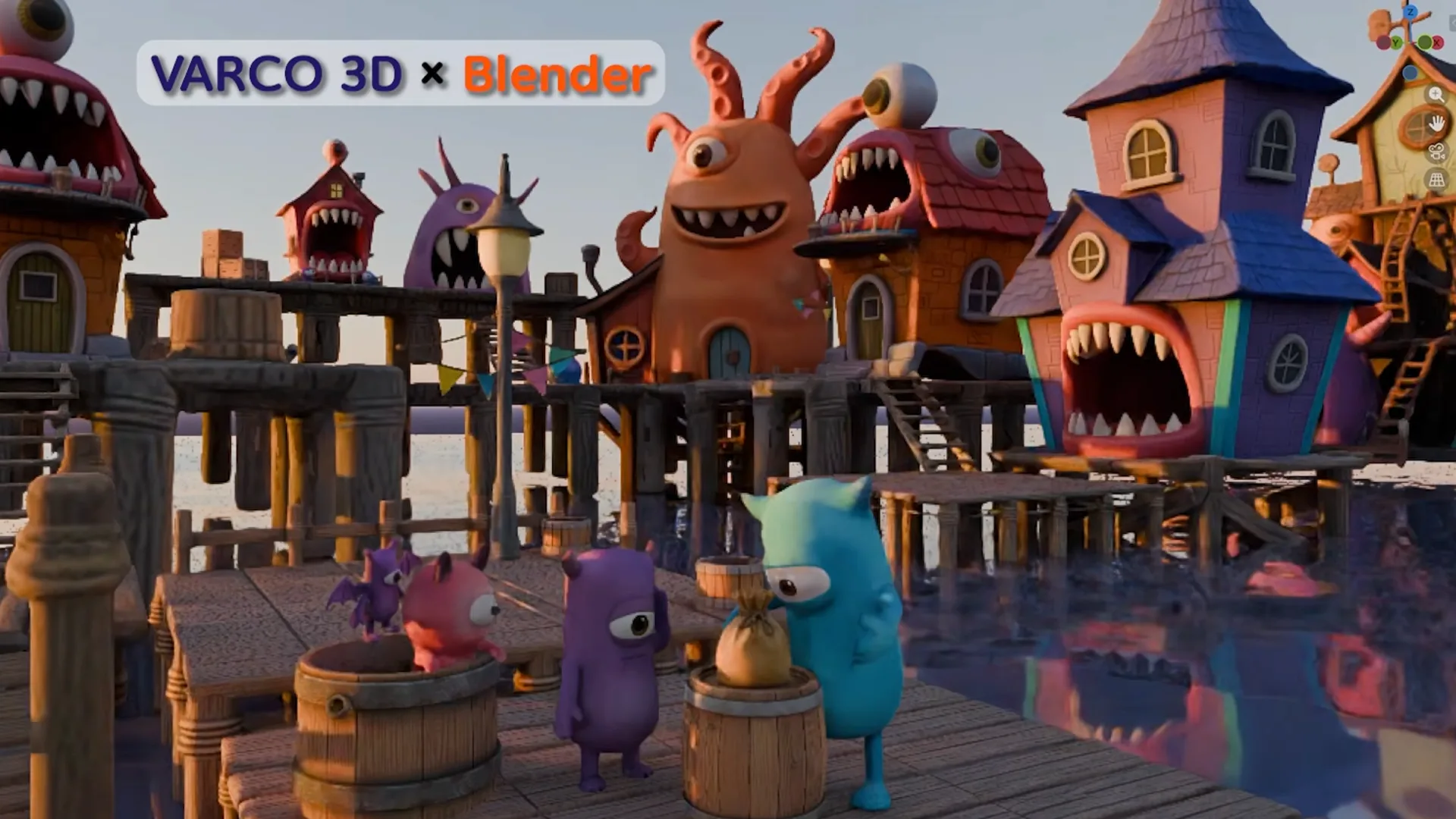
From characters and buildings to props, this monster village was built with a total of 21 3D assets.
The scene was created by Blender instructor and YouTuber Kkamanggoni, using VARCO 3D and Blender.
From turning images into 3D models and editing them with prompts to rigging characters and completing the final scene in Blender,
we’ll walk through the actual production process and show how VARCO 3D can fit into a 3D workflow.
The steps below are based on the workflow shown in the video.
Want to try it yourself? Use the prompts provided in each section and follow along.
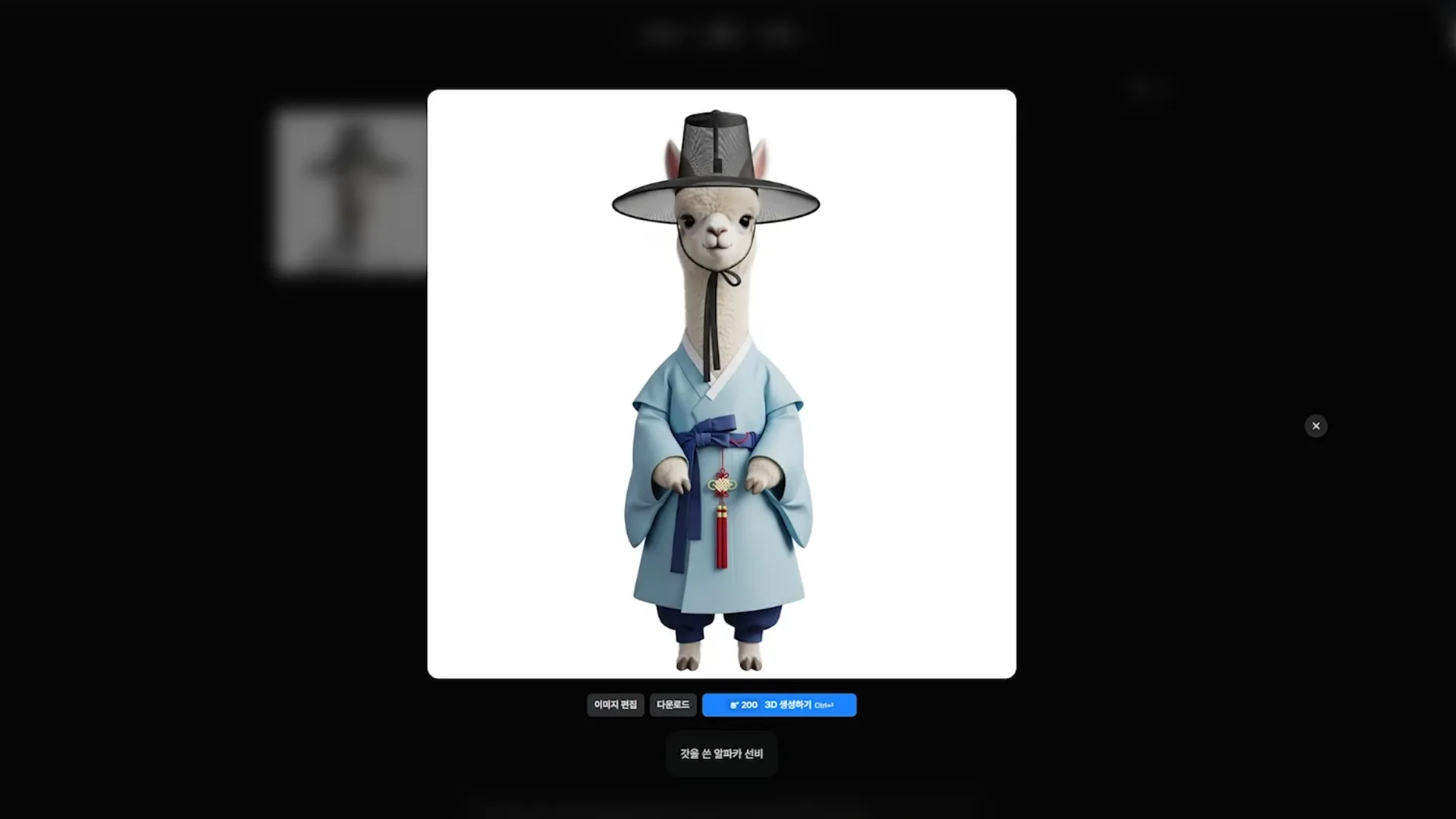
Create an alpaca scholar wearing a gat!
1. Create a 3D Model from an Image: Turn Your Character Idea into 3D
Our first example is an alpaca character wearing a traditional Korean gat and a light blue hanbok.
Instead of modeling the clothing and accessories from scratch,
we first define the character’s appearance as an image, then turn that image into a 3D model.
Workflow
Generate a character image in Image Studio, or upload an illustration or photo you already have.
Once you have the image you want, start the 3D generation process.
Review the generated 3D model and make any necessary adjustments.
Quick tip!
: Before converting your image into 3D, take some time to check the character’s shape and proportions.
Images where the character is facing forward, shown from head to toe, and placed against a simple background tend to be easier to review and work with.
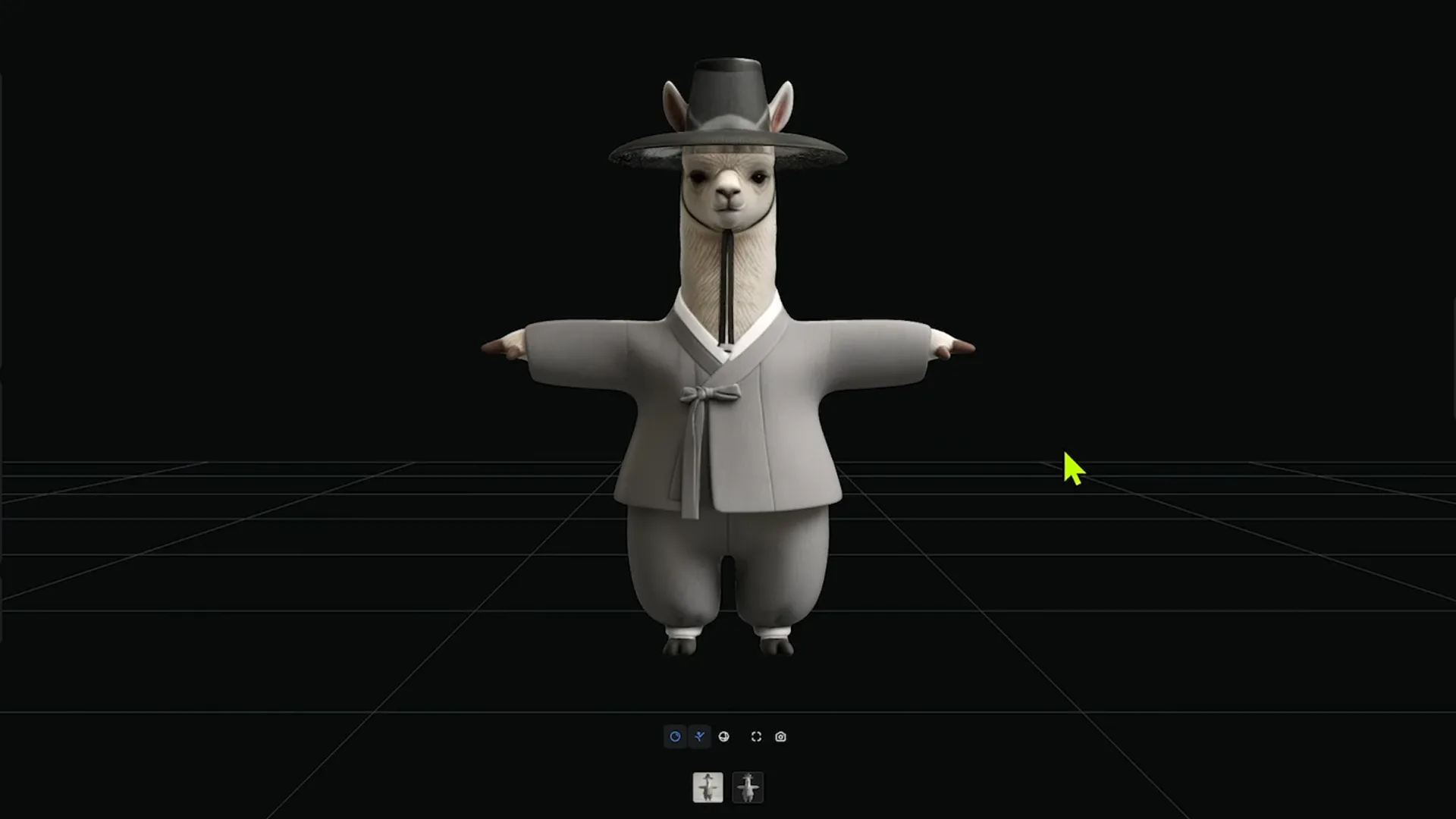
2. Edit Your 3D Model with AI: Refine What You Have Instead of Starting Over
Even when you’re happy with the overall model, there may still be a few details you want to change.
Instead of regenerating the entire model, try describing the specific part you want to adjust.
In the video, we added a backpack to the alpaca. You can describe changes in natural language,
whether you want to add a prop, swap an outfit, or make other visual adjustments.
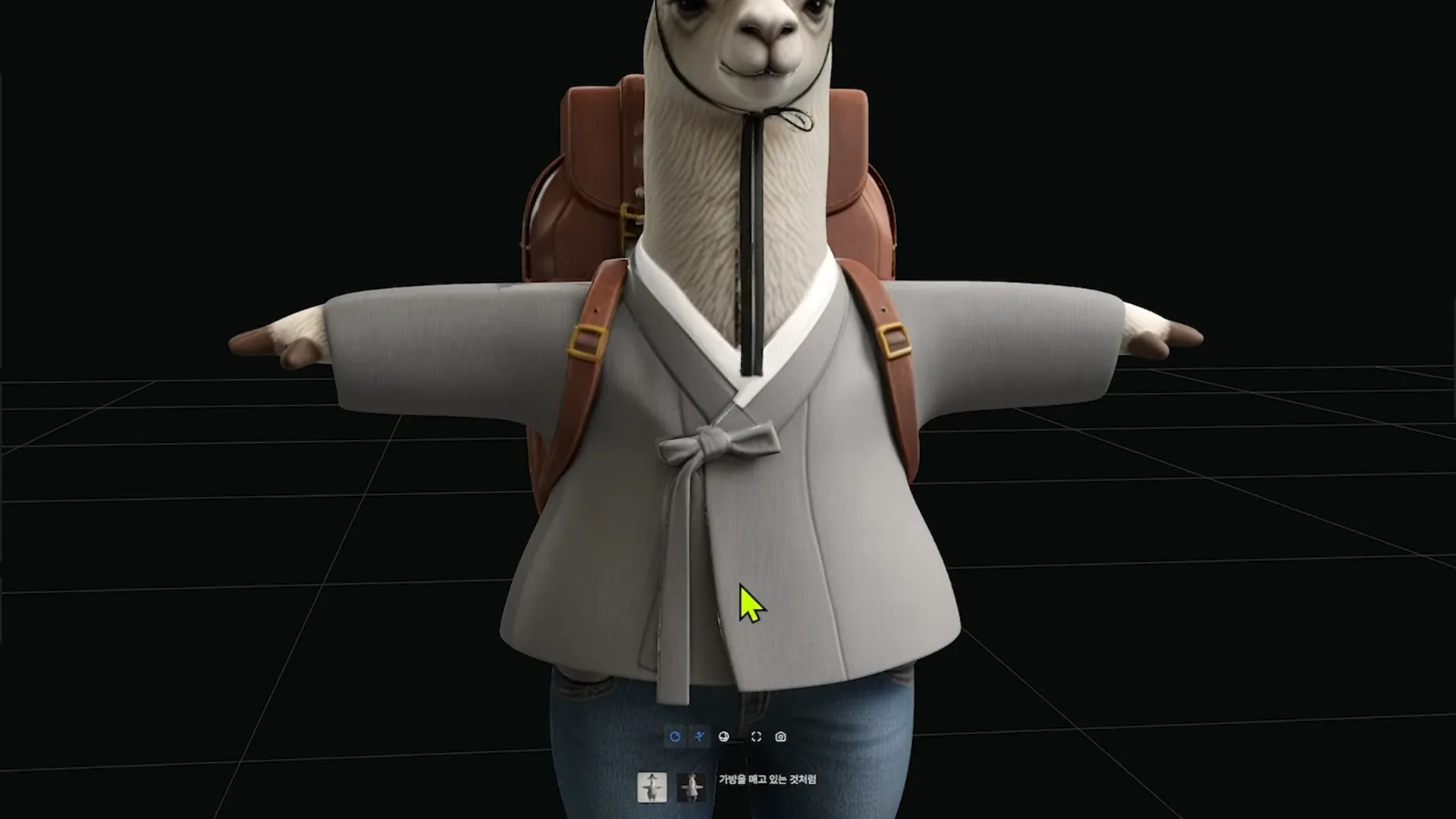
Prompts to Try
Example 1 – Add a prop:
: Add a brown leather backpack to its back.
Example 2 – Change the outfit:
: Change the pants to jeans.
Choose the editing tool that best matches what you want to change.
Use Mesh Editing to adjust the model’s shape, and Texture Editing to modify colors or surface details.
If you’re creating assets for games or other real-time content, you can also consider using Remesh to adjust the polygon count.
The right settings will depend on the model and where you plan to use it.
3. Get Your Character Ready to Move with AI Rigging
To animate a character, you first need to create a skeletal structure and define its joints through a process called rigging.
In VARCO 3D, you can place markers on key joints to set up the rig, or use the AI Rigging feature.
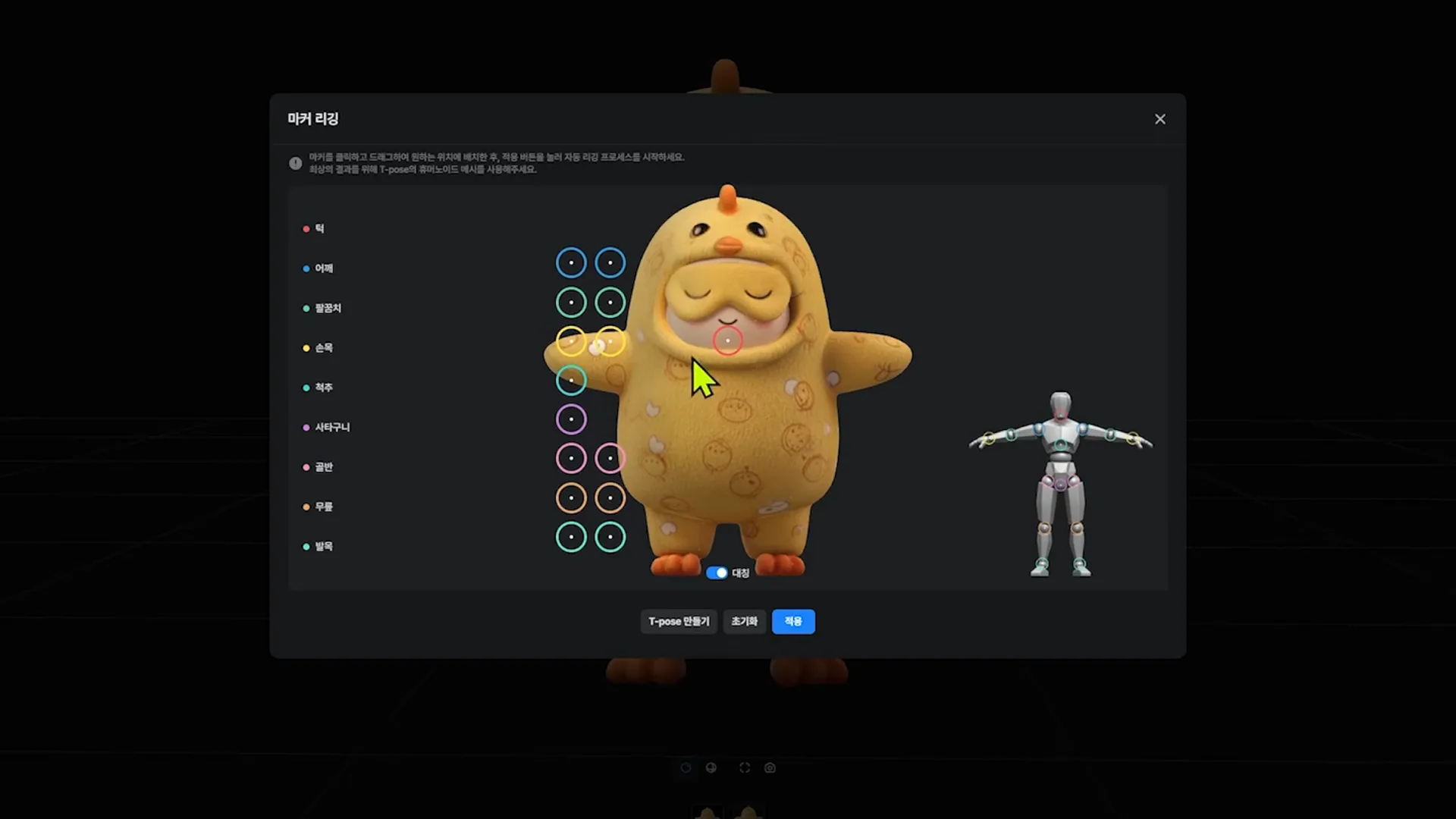
Check the character’s overall shape and joint positions before applying the rig,
then review the result to make sure the movement looks natural.
Depending on the structure of the model, additional adjustments may be needed.
Once the rig is ready, you can apply built-in motions to preview how the character moves.
We’ll take a closer look at how to select, apply, and refine animations in the next article.
4. Build a Scene with AI 3D Modeling: Why It Helps to Create Assets Separately
Once you’ve created a character, you can start combining multiple objects to build a complete scene.
In the video, the concept began with a simple idea: “a monster village floating on the ocean at sunset.”
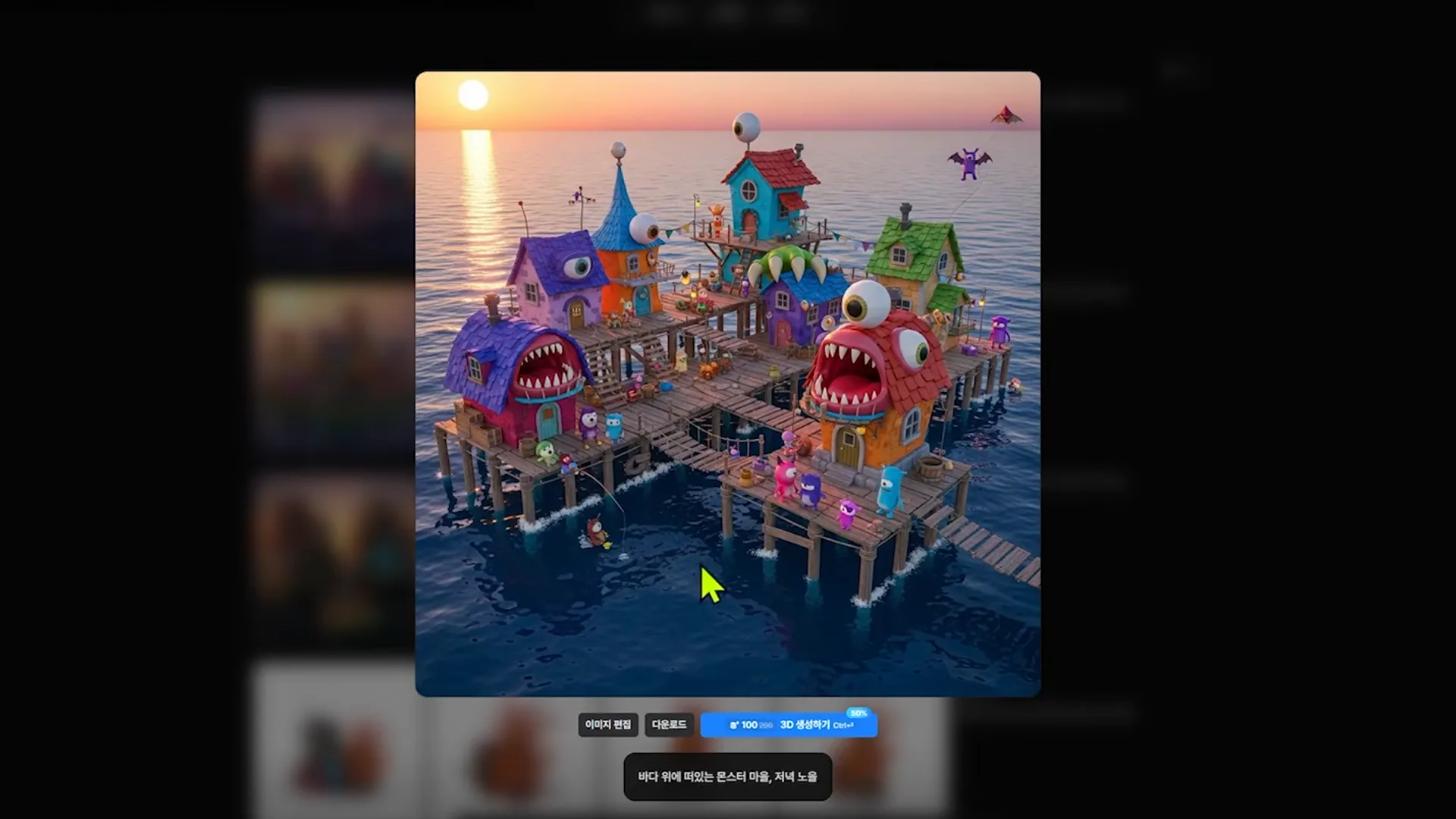
However, converting a complex scene into 3D all at once can cause buildings, characters, docks, and other objects
to merge into a single model.
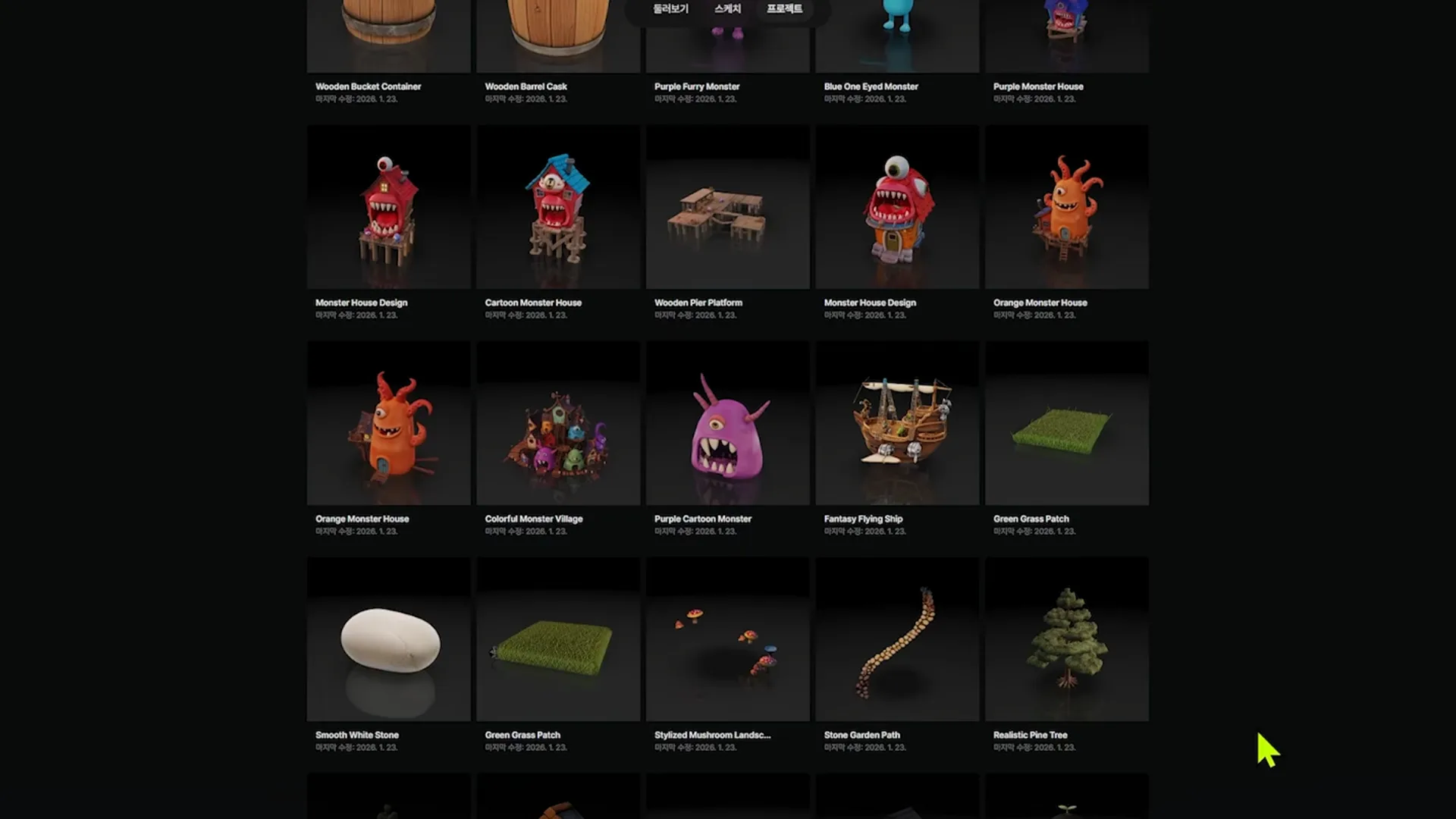
To avoid this, we broke the scene down into separate elements.
• Separate the background and dock, keeping only the elements you need.
• Prepare the characters from the concept image as individual assets.
• Generate buildings, props, and characters separately, then assemble them in the final scene.
Using this workflow, a total of 21 individual 3D assets were created for the video.
Rather than trying to convert the entire scene at once, creating each element separately
makes it much easier to position, edit, and reuse individual assets.
5. Assemble the Assets and Finish the Scene in Blender
Once your individual assets are ready, you can import them into Blender and bring everything together as a complete scene.
The main steps shown in the video include:
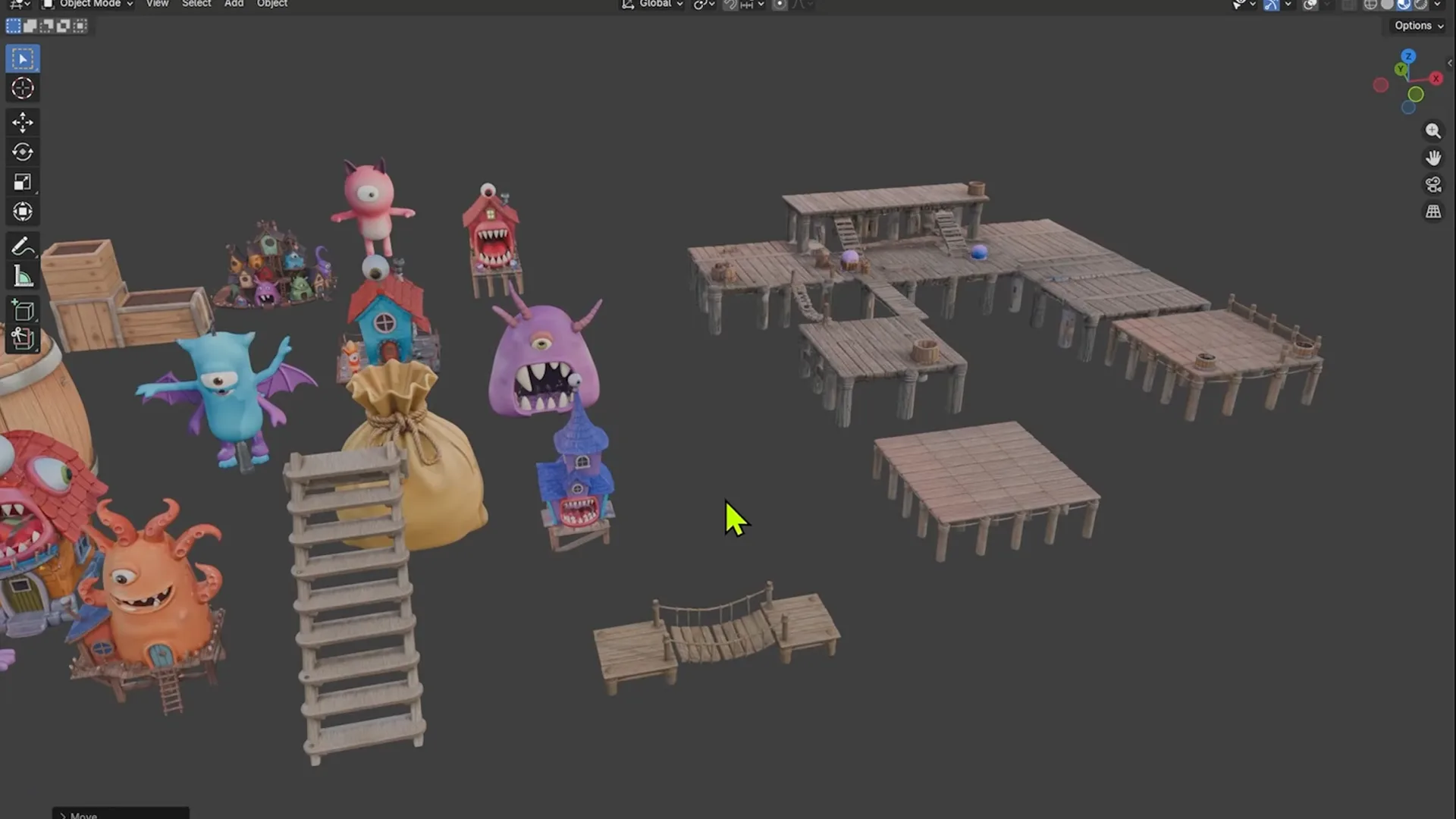
• Arrange the dock and buildings using the concept image as a reference.
• Create the ocean by applying a water material to a plane.
• Adjust the poses of the rigged characters.
• Use Sky Texture and lighting to create a sunset atmosphere.
• Fine-tune the camera and depth of field to guide the viewer’s eye.
A scene comes to life through more than modeling alone.
Composition, lighting, and camera work can completely change how the same assets feel.
In this workflow, VARCO 3D helps with asset creation, while Blender gives the artist full control over composition and final presentation.
6. Where Should You Start in Your Own Workflow?
• If you’re new to 3D: Start by creating your first character from a single image.
• If you’re learning Blender: Import a few assets and practice arranging them, setting up lighting, and working with cameras.
• If you’re an indie game developer: Create characters and props, then test whether they work well for your project and production environment.
• If you’re a professional 3D artist: Explore how AI can support repetitive asset-production tasks so you can spend more time on key models and scene direction.
Start Small with a Single Asset
You don’t need to begin with a huge scene.
A simple image of a coffee mug on your desk or even a sketch you drew yourself
can be a great starting point.
Turn the image into a 3D model, refine the parts you want to change,
and then think about what you want to create next.
In this article, we explored asset creation and scene building in Blender.
In the next one, we’ll take a closer look at how to add animation to your characters.
This article was written based on a video from Kkamanggoni TV’s YouTube channel.


